
Windows x64
Intel and AMD PCs
Shnapp-win-x64.zipGet Shnapp for Windows 11 and turn a quick capture into something ready to keep, copy, or share. Built for Intel, AMD, and ARM PCs.
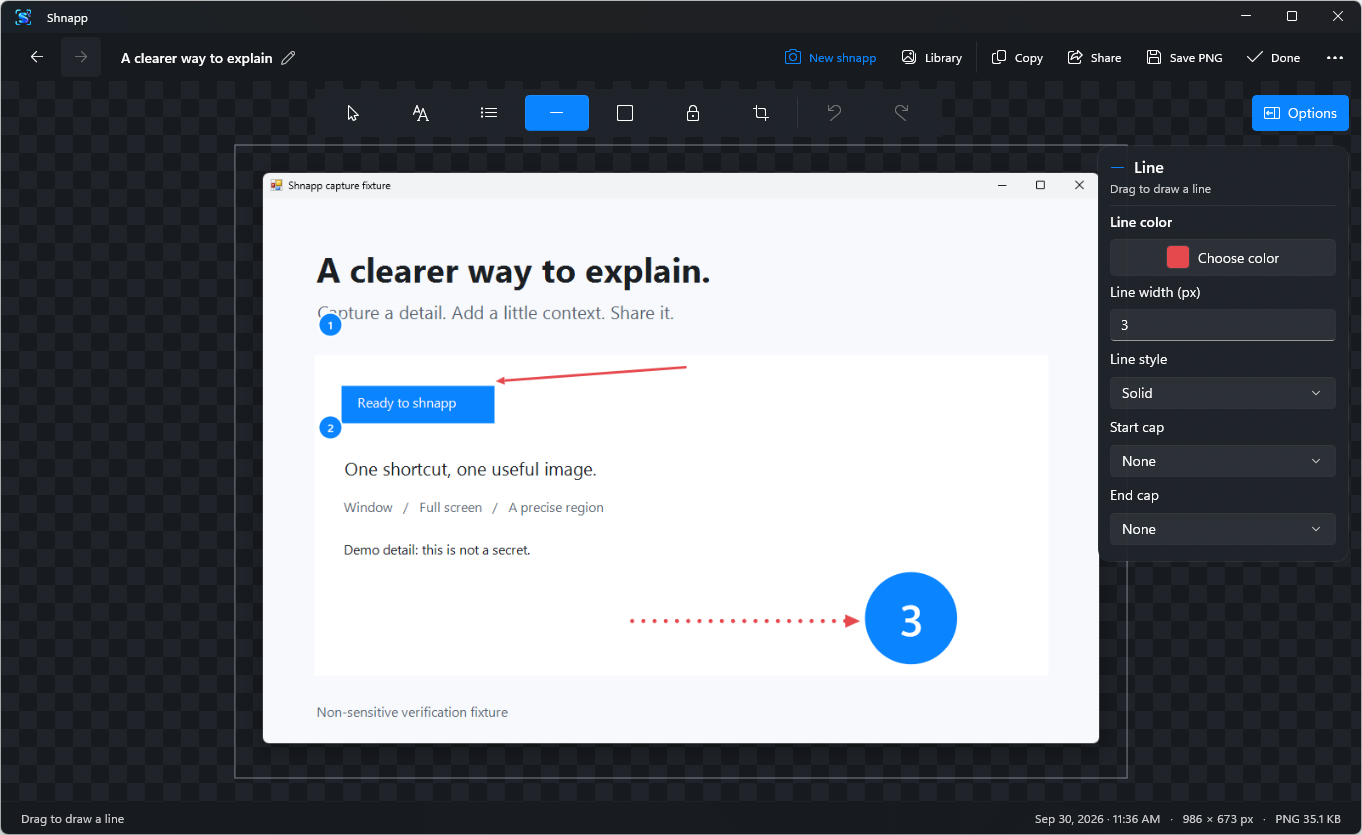
Both portable ZIP packages include the app and its runtime. Extract the whole archive and keep the versions folder and current-version.txt beside the root Shnapp.exe launcher.
Run the setup file for your PC to install Shnapp. Prefer a portable copy? The ZIP package is available beneath each installer.
Unsigned release. Windows may show an Unknown publisher or SmartScreen warning. Check the SHA-256 checksum before running the download.
Signed by Nenvy LLC. The installer and portable executables are code signed. You can also check each download against its SHA-256 checksum.
Intel and AMD PCs
Shnapp-win-x64.zipARM-based PCs
Shnapp-win-arm64.zipNot sure which one? In Windows Settings, open System → About and read System type.
Latest release: View current version on GitHub
No installer wizard to work through. Go from ZIP to your first capture.
Go from setup file to your first capture in a few steps.
Choose x64 for an Intel or AMD PC, or ARM64 for a Windows on ARM PC.
Extract the entire archive to a folder you choose. Keep versions and current-version.txt beside the root Shnapp.exe, then run that launcher.
Run the setup file to install Shnapp, then open the app.
Use Ctrl + Shift + 2 for a region, 4 for a window, 3 for a display, or 5 for a camera photo when a camera is connected.
Choose a package manager or install through Microsoft Store. Each channel shows its current status.
The Windows Package Manager catalog.
Install and update details will appear after listing.
A command-line route for portable apps.
scoop bucket add shnapp https://github.com/Zettersten/scoop-bucket
scoop install shnapp/shnappscoop update shnappA Chocolatey Community package; approved versions may lag GitHub releases.
choco install shnappchoco upgrade shnappA Store-managed install and update path.
Shnapp saves its library and preferences in your Windows user folder, separate from the app files.
How Shnapp handles your dataNo. Capturing, editing, copying, and saving do not require an account.
Direct-download editions keep your library and settings under %LOCALAPPDATA%\Shnapp by default. The Microsoft Store edition uses its own Windows app-data folder. Quit a direct-download copy before opening the Store edition for the first time so it can copy your existing library. Your original files stay in place. PNGs you save elsewhere go to the location you choose. See the privacy details.
Direct ZIP copies check for a stable GitHub release at most once a day. Shnapp verifies and prepares a newer version in the background, then uses it on your next restart. You can check or restart from Settings → About & Updates. Copies installed before v1.0.4 need one manual ZIP replacement to gain this feature; the local library stays in your Windows user folder. Scoop, WinGet, and Chocolatey copies use their package managers, with an update action in Shnapp. A Store copy uses Microsoft Store updates.
Installer copies can check for and apply app updates from Settings → About & Updates. Portable ZIP copies retain their existing GitHub release updater. Scoop, WinGet, and Chocolatey copies use their package managers, with an update action in Shnapp. A Store copy uses Microsoft Store updates.
Use opaque Cover before copying, saving, or sharing the finished image. Blur and Pixelate are visual obscuring tools and may leave details recognizable. Your editable original stays in your local library.
Report a bug or tell us what would make Shnapp more useful. The links open a GitHub issue form.