
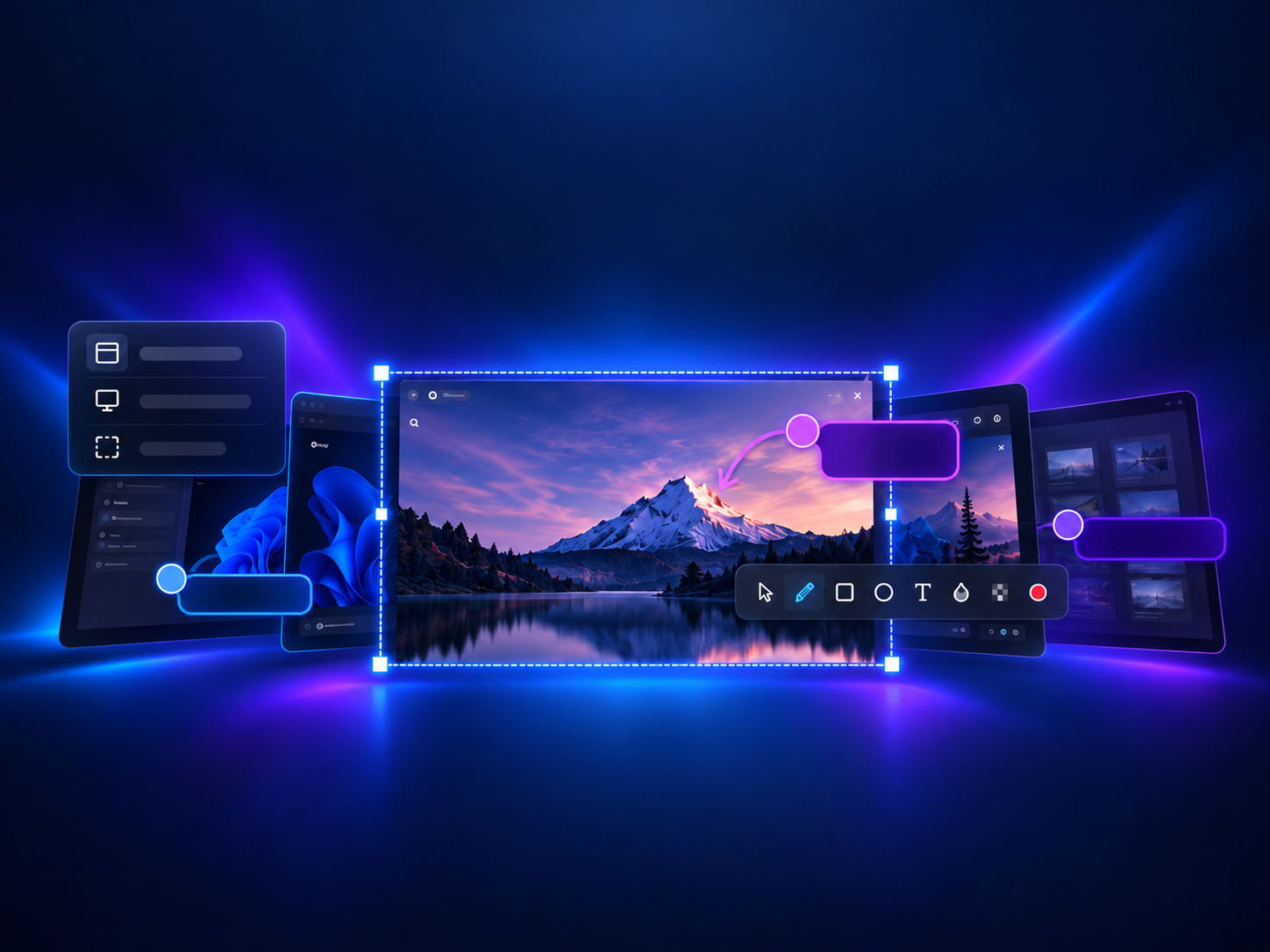

Make the picture
do the explaining.
Capture a region, window, screen, or camera photo. Add callouts, magnify what matters, cover private details, then copy or save a picture that is ready to share.
Windows 11 · x64 and ARM64 · Available now
Illustrative scene. Actual app captures below.
Screen and camera capture
Callouts and magnifier
No account for the core flow
Searchable local library
A clearer picture, start to finish.
Shnapp brings capture, editing, and your saved work into one quick flow. Explore the tools behind each step.
Capture
Choose a region, window, display, or camera photo with a click or shortcut.
Explain
Point with numbered callouts, magnify details, and add text, steps, lines, or shapes.
Protect
Use opaque Cover to remove a private detail from the picture you share.
Keep
Copy or save the finished PNG; find and reopen the editable shnapp in your local library.
See the whole picture.
Watch the v2 editor in motion: an image that fills the window, tools that stay close, and an editable library for everything you keep.
Actual app footage with fictional sample content and a CC0 landscape photo by sayid he. Music: “Cloud Dancer” by Kevin MacLeod, CC BY 4.0; edited to fit the demo.
Capture
Pick a window, display, region, or camera photo.
Make it clear
Add the words, steps, shapes, or privacy cover you need.
Send it on
Copy the finished image or save a PNG for later.
One canvas, edge to edge.
The picture continues behind the compact title bar, footer, and acrylic options panel. Open a tool panel, zoom in, or pan around without squeezing the image into a smaller workspace.
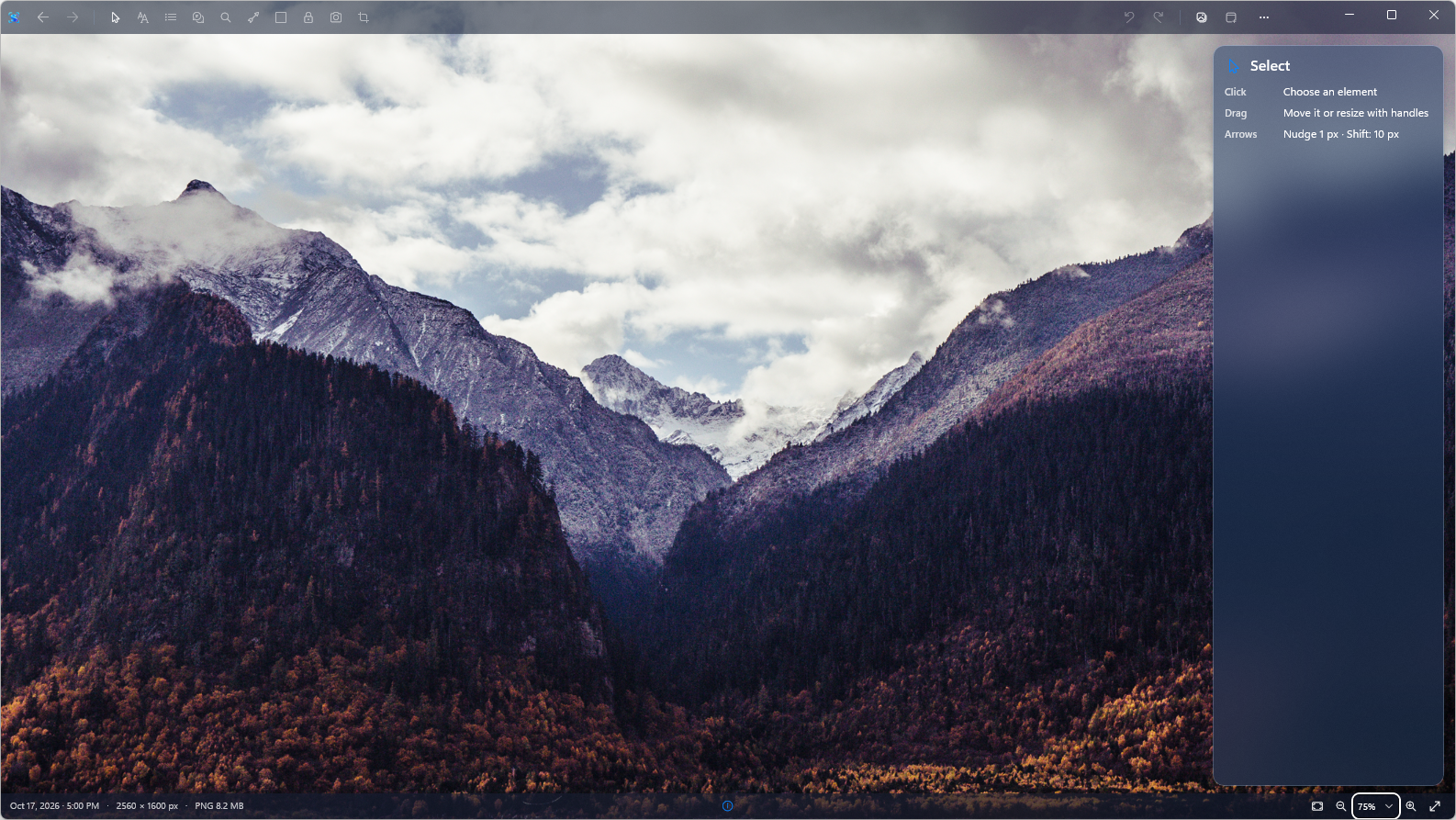
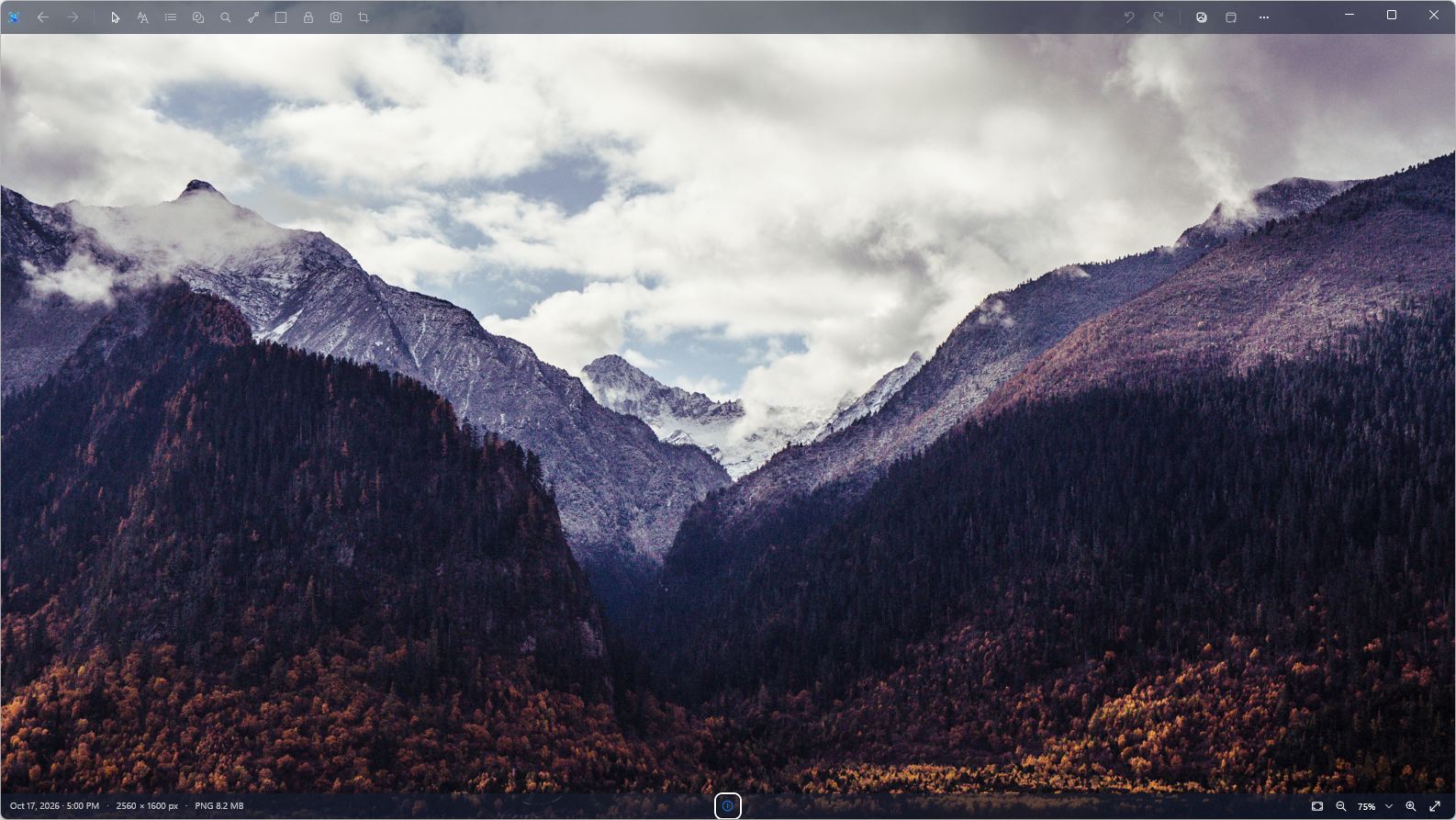
Actual Shnapp screenshots with “Mountain lake in the autumn” by sayid he, CC0 1.0.
The right detail, in the right place.
Shnapp puts your capture on the canvas and its tools close by. Add a mark, then adjust it without losing the thread.
- Point it out. Numbered callouts connect a detail on the capture to an explanation outside it.
- Bring it closer. Magnify an area and adjust its zoom, size, and outline.
- Make your mark. Add rich text, numbered steps, lines, arrows, and shapes; style individual words with bold, italic, or underline.
- Keep control. Crop, group, move, flip, or rotate marks, or nudge a selection one pixel at a time.
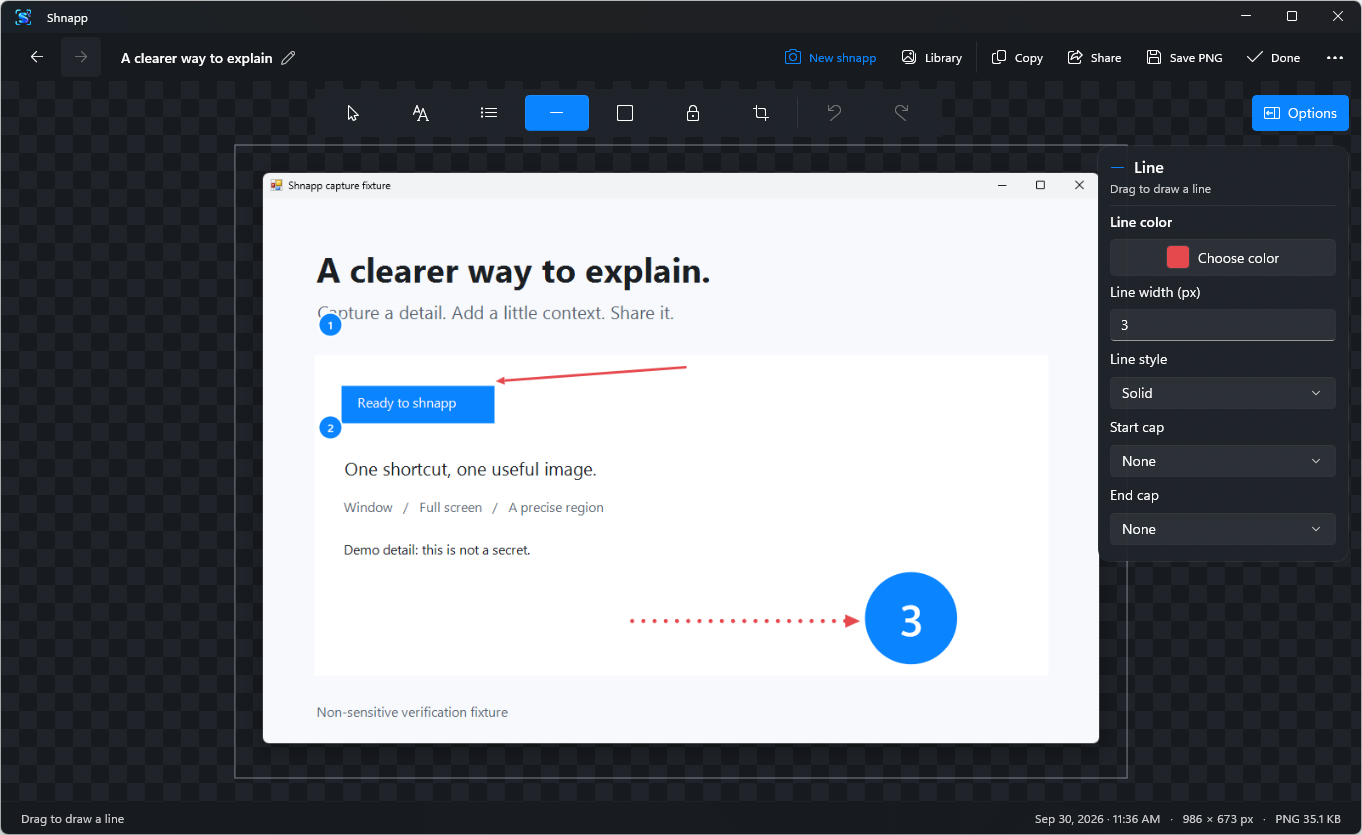
Turn the detail until it fits.
Select a shape, line, annotation, text element, or photo and drag its rotation handle. For exact changes, right-click the element to flip it or choose a clockwise or counterclockwise angle.
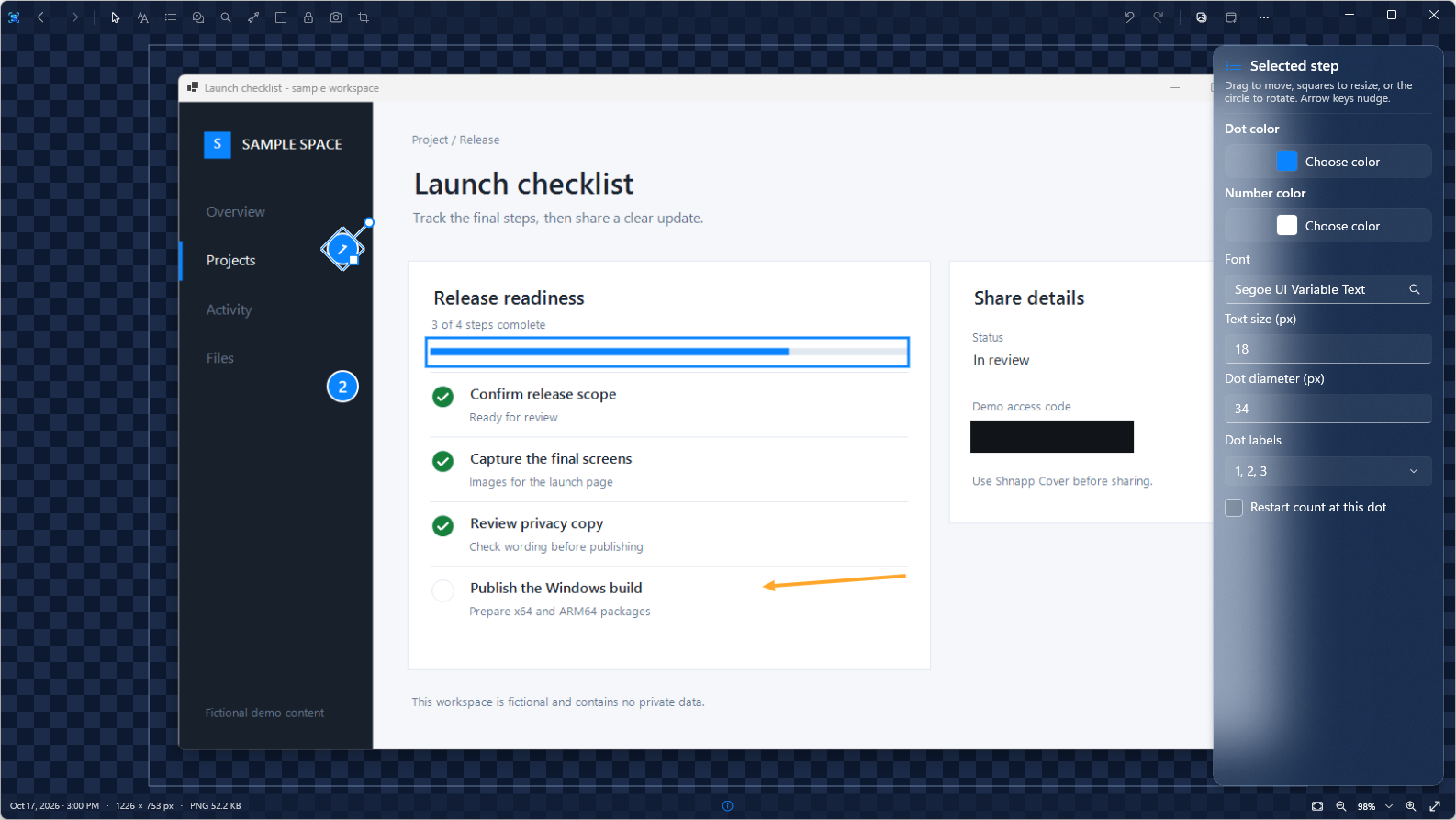
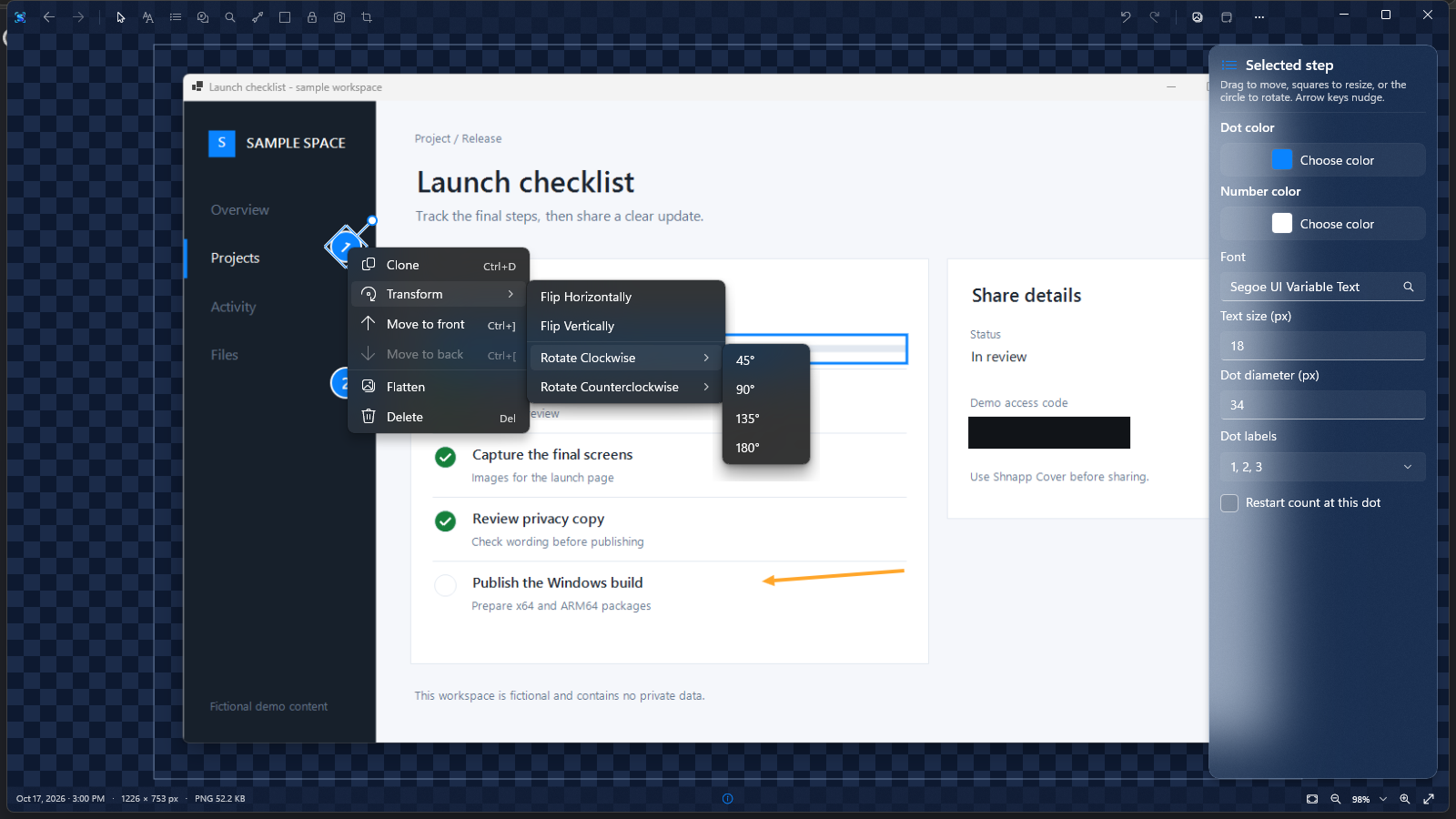
Actual app screenshots with fictional sample content.
Four ways to capture.
One place to finish.
Shnapp waits in the Windows tray. The main Capture button starts a rectangular region; its separate arrow offers a window, display, or camera photo. Shortcuts work while you are in another app.
A region
Drag a precise rectangle with live dimensions. Hold Shift for a square.
CtrlShift2A window
Choose the window you want. Shnapp frames it with a soft shadow.
CtrlShift4A screen
Capture the display beneath your pointer in one move.
CtrlShift3A camera photo
Preview a connected camera, take a still, and open it as an editable shnapp.
CtrlShift5A camera photo is a shnapp, too.
Press Ctrl+Shift+5 or choose Camera photo from the Capture menu. Pick a connected camera, frame the shot in a live preview, and take a still photo. It opens ready to annotate. You can also add another camera photo to the editor as a movable layer and crop it there.
Camera actions are available when a camera is connected. Choose your preferred camera in Settings.
- 1PreviewFrame the photo
- 2CaptureOpen an editable shnapp
- 3LayerAdd and crop another photo
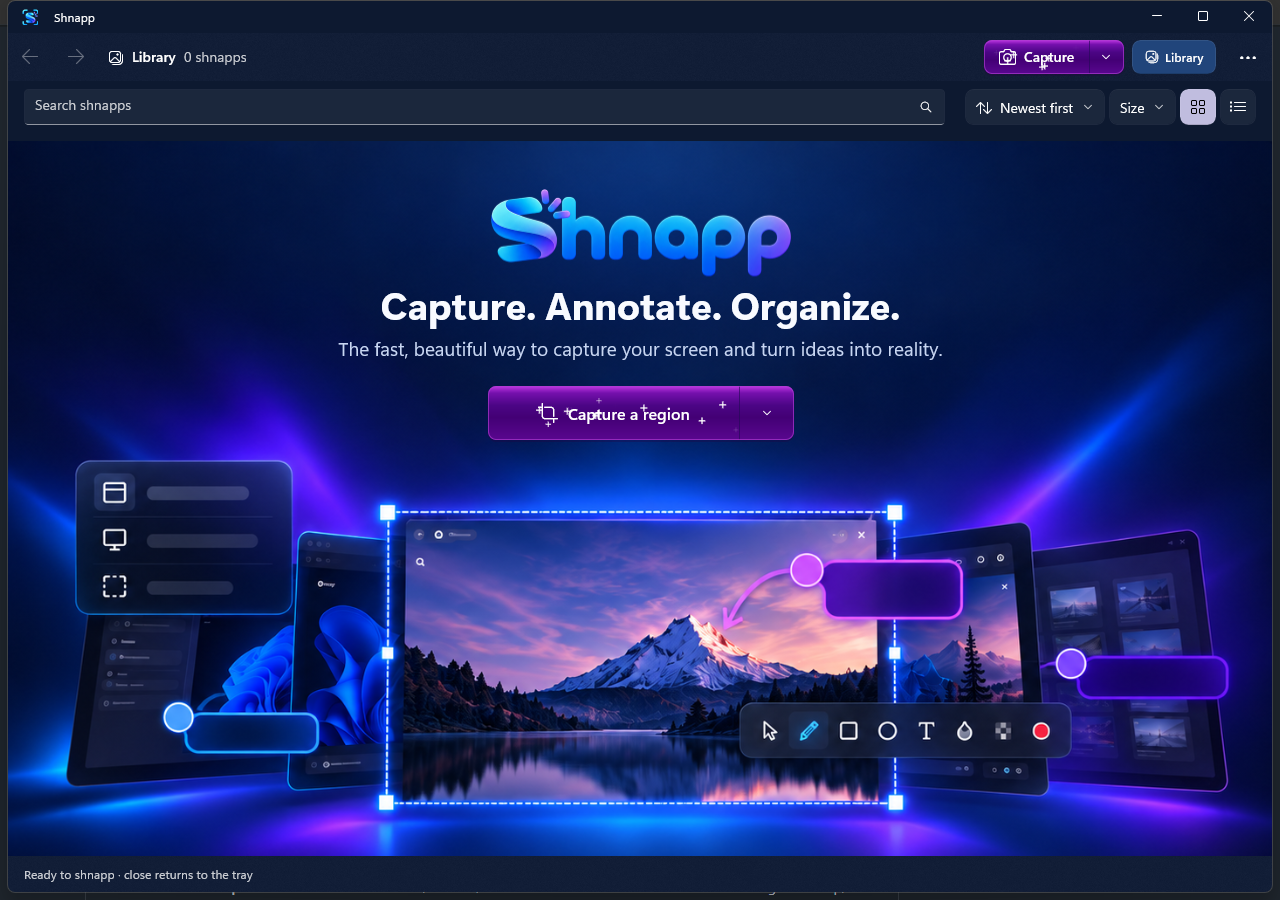
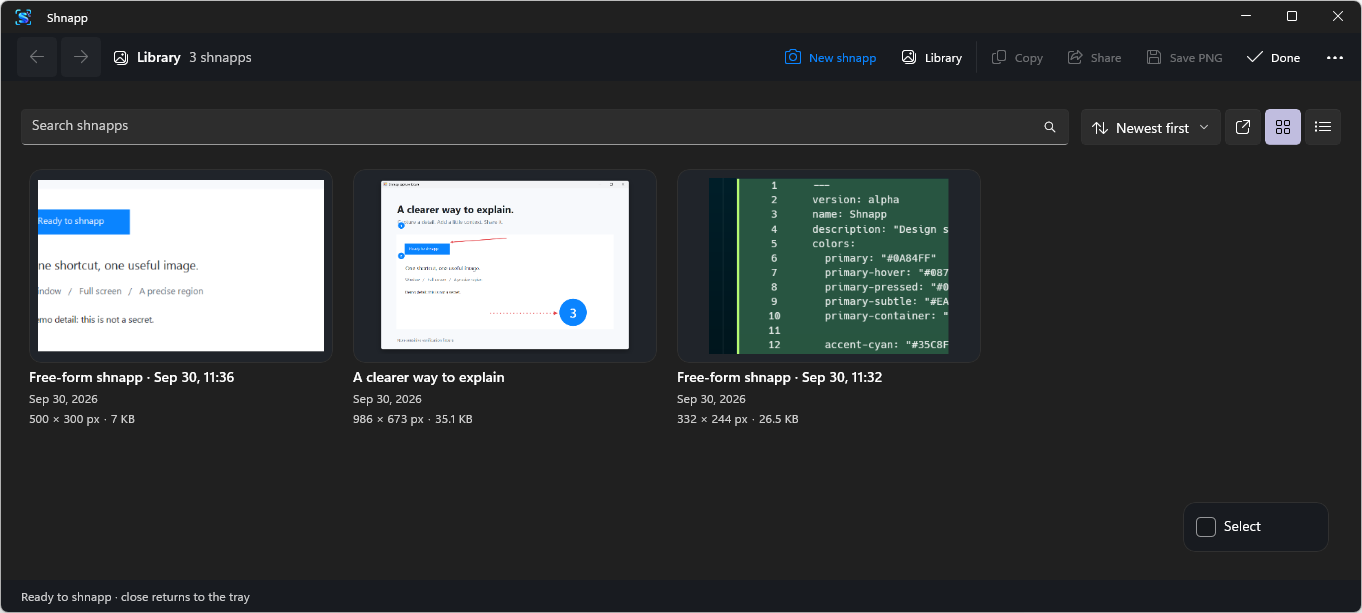
A good capture is worth finding again.
Saved shnapps land in your local library, ready to search, sort, reopen, or share. Choose the thumbnail size that makes browsing feel right, or press Ctrl+A to select every result.
When you revisit an image, the canvas and your marks are ready for another pass.
Where your captures liveSet it once. Keep moving.
Choose how Shnapp starts, copies new captures, and frames captured windows. Pick a connected camera or let Shnapp choose automatically. Assign Print Screen to full-screen, window, or region capture, change the theme, and find your local library path in one place.
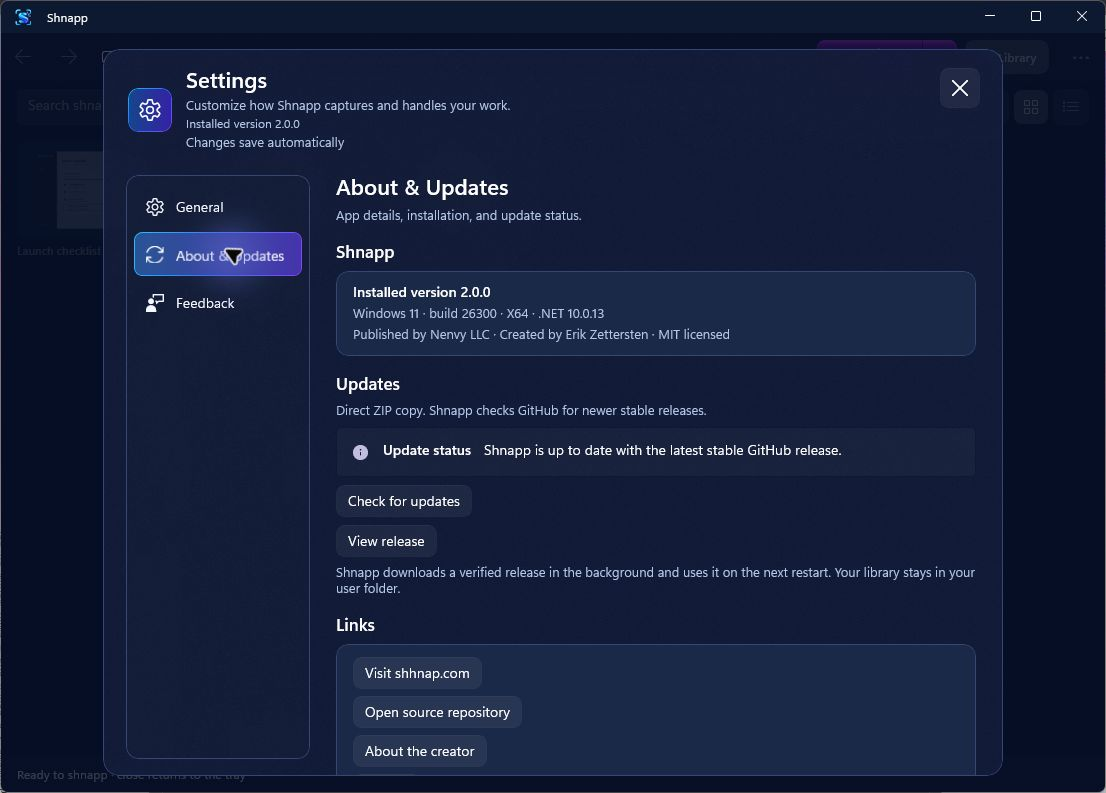
Preferences save as you change them. About & Updates shows the installed version and any available release, while Feedback keeps report links close.
Get Shnapp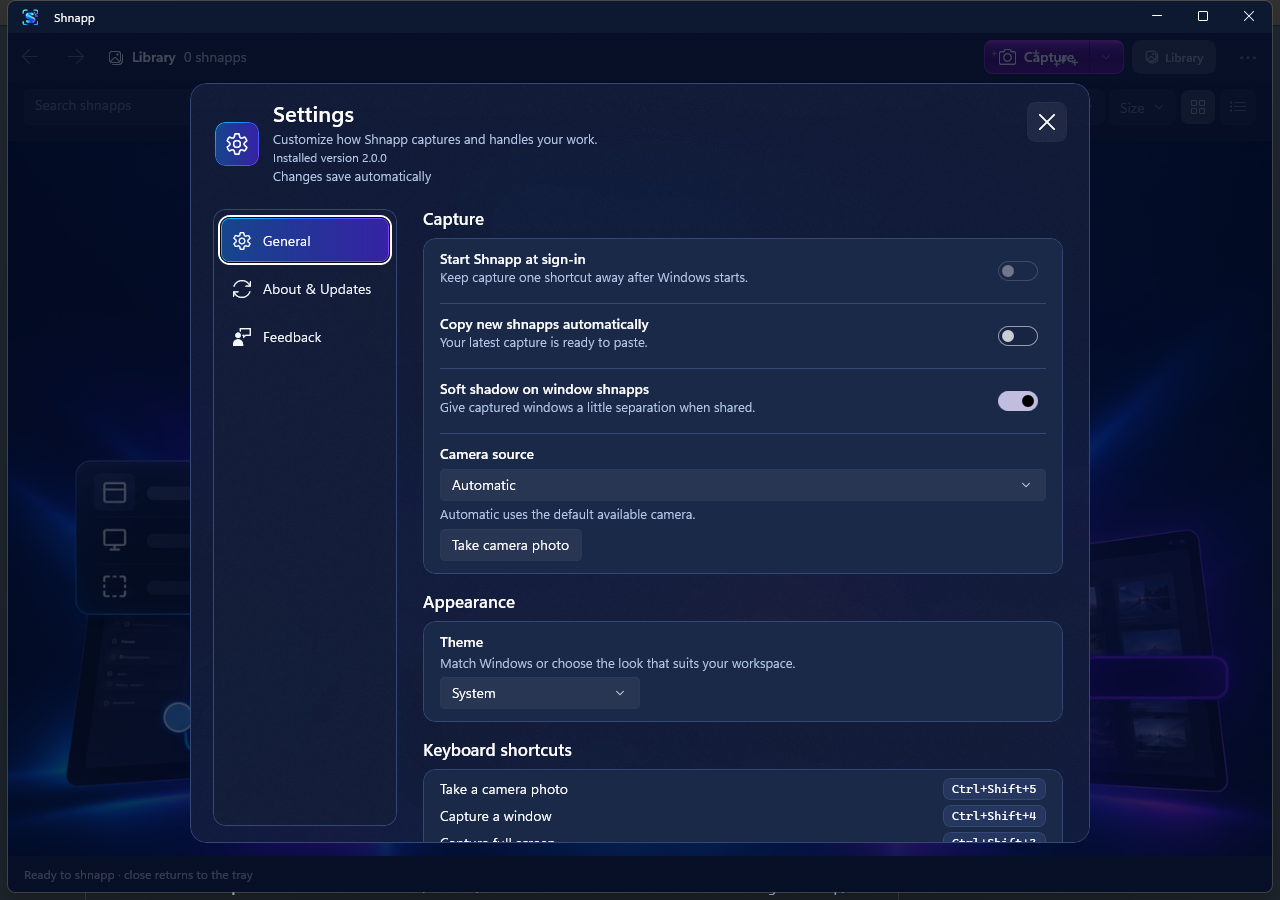
Your work stays yours.
The core capture and editing flow needs no account or internet connection. Your library and preferences stay in your Windows user folder. Use opaque Cover when sensitive details need to be removed from the image you share.
Read the privacy detailsGood to know.
A few practical answers before your first shnapp.
What can Shnapp capture?
The main Capture button starts a rectangular region capture. Its attached arrow offers a window, the screen beneath your pointer, or a camera photo when a camera is connected. The desktop freezes during a screen selection; Camera opens a live preview.
Do I need an account?
No. Capture, edit, copy, and save work without an account or internet connection.
How do I install it?
Install through the Microsoft Store, or choose the x64 or ARM64 direct download on the download page. Portable ZIP packages and Scoop are also available.
Can I hide sensitive information?
Use opaque Cover before sharing the finished PNG. Blur and Pixelate are visual obscuring tools and may leave details recognizable. The editable original remains in your local library.
Ready to make it clear?
Capture the moment. Add the context. Share the picture.